

Why does my Telegram video look blurry?
A soft Telegram video usually has one of three causes, and only one of them is permanent. How to tell which one you have, and how to get the sharpest version.
You find the video you were looking for. The thumbnail looks fine. You press play, and the picture is soft enough that you can barely read the text on screen. Then you download it, hoping the file will be better, and it isn’t.
This happens constantly on Telegram, and the frustrating part is that it can have three completely different causes. One of them takes a single tap to fix. One can only be fixed by the person who posted the video. And one can’t be fixed at all.
Working out which one you have takes about thirty seconds.
The short version
- Telegram is playing a lower quality on purpose. In large channels, the player picks a quality based on your connection. You can switch it by hand.
- The video was compressed when it was sent. If it went in as a regular video rather than as a file, Telegram shrank it on the way up. Only the sender can avoid that.
- It was already low quality before it reached Telegram. A screen recording of a screen recording stays blurry no matter what anyone does.
Cause 1: Telegram picked a lower quality for you
This is the newest of the three and the one most people have never heard of.
Since an update in late 2024, Telegram stores videos posted in large channels in several qualities and chooses one automatically depending on how fast your connection is. On a slow mobile network you may be watching the low-quality version without knowing it. The video itself is fine. You are just not seeing the good copy.
To switch, open the video, tap the three-dot menu or the settings icon in the player, and look for Quality. You will usually see options such as 1080p, 720p and 480p, plus Auto. Pick the highest one. On some versions of the app you will also see a Source option, which is the original upload that Telegram has not re-encoded.
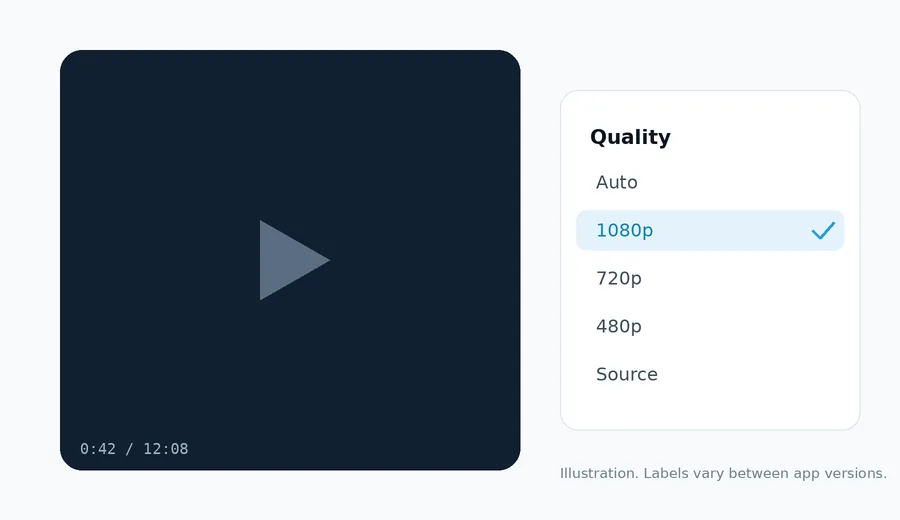
A couple of things to know about this menu. It only appears for videos that Telegram has processed for streaming, which mostly means newer videos in bigger channels. In a small group or a private chat you probably won’t see it at all, and in that case this isn’t your problem.
Cause 2: the video was sent as a video, not as a file
This is the classic one, and it still accounts for most blurry videos on Telegram.
When you attach a video the normal way, Telegram compresses it before uploading. The file gets much smaller, it starts playing faster for everyone, and it loses detail. Fine text, faces in the background and dark scenes suffer first.
When you attach the same video as a file, Telegram uploads the original bytes untouched. It shows up in the chat as a document with a file name and a size instead of as a playable preview, and the quality is exactly what the sender had on their phone or computer.
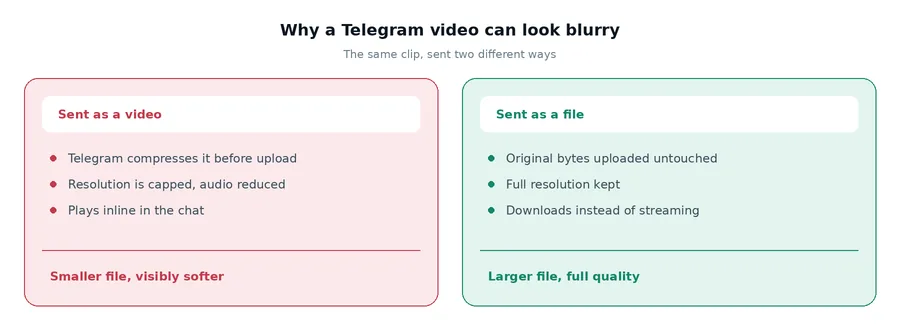
You can usually tell which one you are looking at without opening anything. A big thumbnail with a play button means it was sent as a video. A row with an icon, a name like lecture_04.mp4 and a size like 1.4 GB means it was sent as a file.
If it was sent as a compressed video, the detail is gone. Downloading it with any tool, including ours, gives you the compressed copy, because that is the copy Telegram has.
If you are the one sending
Sending as a file takes one extra tap.
Android: tap the paperclip, switch to the File tab, then choose the video from your gallery.
iPhone: tap the paperclip, choose File, then Photo or Video, and pick the clip.
Telegram Desktop: drag the video into the chat. In the dialog that appears, untick the option to compress or choose to send it as a file.
The names of these options shift slightly between versions, but the idea doesn’t change: you are looking for the route that treats the video as a document rather than as media.
One trade-off to be aware of. A file has to download before it plays, so people on slow connections will wait longer. For a quick clip that doesn’t matter much. For a two-hour lecture it matters a lot.
Cause 3: it was blurry before it ever reached Telegram
Plenty of videos on Telegram are copies of copies. Someone records a stream on their phone, posts it, someone else downloads and reposts it, and each step loses a little more.
No setting can bring that detail back, and any tool promising to turn a 480p video into a sharp 1080p one is either inventing detail with an upscaler or just not telling the truth. If you find the same video in several channels, the one with the largest file size is usually the closest to the original.
Which one is it? A quick check
- Is there a Quality option in the player? If yes, set it to the highest value or Source. If the video sharpens up, you are done.
- Is it a document row with a file size? Then it was sent as a file and you are already seeing the original. If it’s still soft, it’s cause 3.
- Is it a regular video preview with no Quality option? Then it was most likely compressed on upload. The only better copy is the one on the sender’s device.
Getting the file onto your computer
Once you know which version you want, getting it off Telegram is the easy part. For a video in a public channel, copy the post link and paste it into Telegram Downloader. You get a direct link that works in any browser or download manager.
You don’t need to touch the Quality menu first. The tool always fetches the highest quality Telegram holds for that post, even if the app has been playing you a lower one. What it can’t do is go beyond that: a video sent as a file comes through at full quality, and a video that was compressed on upload comes through compressed, because the compressed copy is the best one Telegram has.
For big files, paste the link into a download manager such as IDM, Free Download Manager or JDownloader instead of downloading in the browser. If your connection drops halfway through a 2 GB file, a download manager carries on from where it stopped. A browser usually starts again from zero.
Quick answers
Why does a Telegram video look sharp in the thumbnail but blurry when it plays?
The thumbnail is a small still image, so it hides compression well. When the video plays at full size, the missing detail becomes obvious. In large channels it can also mean the player chose a low quality for your connection.
Can I choose the quality of a Telegram video?
Inside the app, sometimes. For videos that Telegram has processed for streaming, mostly newer videos in large channels, the player has a Quality menu. For everything else there is only one version. When you download with Telegram Downloader you don’t need to choose, because it always takes the highest quality available.
Does downloading a Telegram video reduce its quality?
Not with a direct download. You get the highest-quality version Telegram holds for that post. If it still looks worse than you expected, the quality was lost earlier, when it was sent or before.
How do I send a video on Telegram without losing quality?
Send it as a file instead of as a video. On mobile, use the File option in the attachment menu. On Telegram Desktop, turn off compression in the send dialog.
Last checked October 2026 against Telegram’s own release notes. If something here no longer matches the app, tell us at [email protected].


One Comment