
How to download all files from a Telegram channel at once
Telegram Desktop can save every video, photo and file from a channel in one go. Here is how to use Export chat history, the settings that matter, and its limits.
Saving one video from a channel takes a few seconds. Saving four hundred of them, one at a time, is the kind of job that quietly eats an evening. Telegram actually has a tool for this. It is just tucked away in the desktop app, where most people never look.
It is called Export chat history. You point it at a channel, tick the kinds of files you want, and it downloads all of them into one folder on your computer.
What you need before you start
- Telegram Desktop on Windows, macOS or Linux. The phone apps don’t have this feature at all.
- On a Mac, the version from desktop.telegram.org. The copy in the Mac App Store does not include export.
- Plenty of free disk space. A busy channel can easily run to tens of gigabytes once the videos are counted.
- The channel open in your app. If the export option doesn’t show up, join the channel first.
How to export every file from a channel
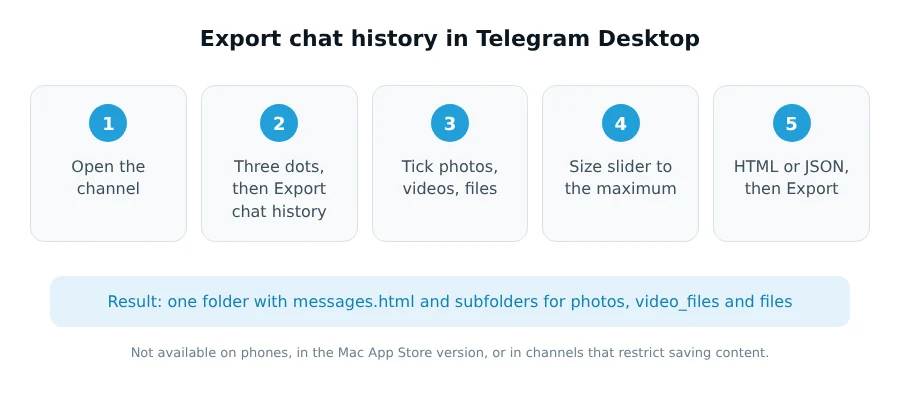
- Open the channel in Telegram Desktop.
- Click the three dots in the top right corner and choose Export chat history.
- Tick the media you want. You can choose photos, videos, voice messages, video messages, stickers, GIFs and files. Untick anything you don’t need. It saves a surprising amount of time.
- Raise the size limit. Telegram skips large files by default. Drag the size slider all the way to the right so long videos are included.
- Pick a format and a folder. Choose HTML if you want to scroll through the posts in a browser later, or JSON if you plan to process them with a script. Change the download path if your main drive is short on space.
- Narrow the dates if you like. The From and To fields let you export one month instead of the whole history.
- Click Export and leave the app open until it says it’s done.
What you end up with
Telegram creates a folder named something like ChatExport_2026-10-25. Inside it you will find the posts themselves, in messages.html or result.json, plus subfolders for each kind of media, such as photos, video_files and files.
Open messages.html in any browser and you can read the channel like a website, with every photo and video linked next to the post it came from. That is often more useful than a pile of files with numbers for names, because you can still see what each video was about.
When it doesn’t go to plan
There is no Export option
Nine times out of ten it is one of three things. You are on a phone. You are on a Mac using the App Store version. Or the channel owner switched on Restrict saving content. In protected channels Telegram removes export completely, and there is no setting on your side that brings it back. We explain how that protection works in our guide to private and protected channels.
The big videos are missing
The size limit was left at its default. Run the export again with the slider at its maximum, and untick the media types you already have so Telegram doesn’t fetch them twice.
It is taking forever
Export downloads every file through your normal Telegram connection, one after another. A channel with a few dozen photos finishes in minutes. One with thousands of videos can take many hours. Keep the computer from going to sleep, and if you only need recent posts, use the date range instead of exporting years of history.
You only need a few posts
Export works by media type and date, so it is a blunt tool when you want five specific videos. For a handful of posts from a public channel, it is quicker to copy each post link and paste it into Telegram Downloader. You get a direct link that works in any browser or download manager, without installing anything.
Doing it from code
If you are building a bot, an archiving tool or an app that needs Telegram files on a schedule, clicking through the desktop app won’t scale. Our Telegram Downloader API takes a public post link and returns a direct download link and a stream link, so your code can fetch files without running its own Telegram client.
Is it allowed?
Exporting is a built-in Telegram feature, so using it is not against the rules. What you do with the files afterwards is a separate question. Videos, music and books posted in channels are often someone else’s work, and copyright still applies once they are on your hard drive.
Quick answers
Can I export a Telegram channel from my phone?
No. Export chat history is only in Telegram Desktop for Windows, macOS and Linux. On a Mac, use the version from desktop.telegram.org, because the App Store version doesn’t include it.
Why is Export chat history missing?
You are on a phone, you are using the Mac App Store version, or the channel has Restrict saving content switched on. In protected channels Telegram removes export completely.
How long does a Telegram export take?
It depends on how much media the channel has. A few dozen photos take minutes, while thousands of videos can take many hours. A date range makes it much quicker.
Can I export only the videos from a channel?
Yes. In the export window, untick everything except Videos and drag the size limit to the maximum so long videos aren’t skipped.
Last checked October 2026 in Telegram Desktop. If something here no longer matches the app, tell us at [email protected].