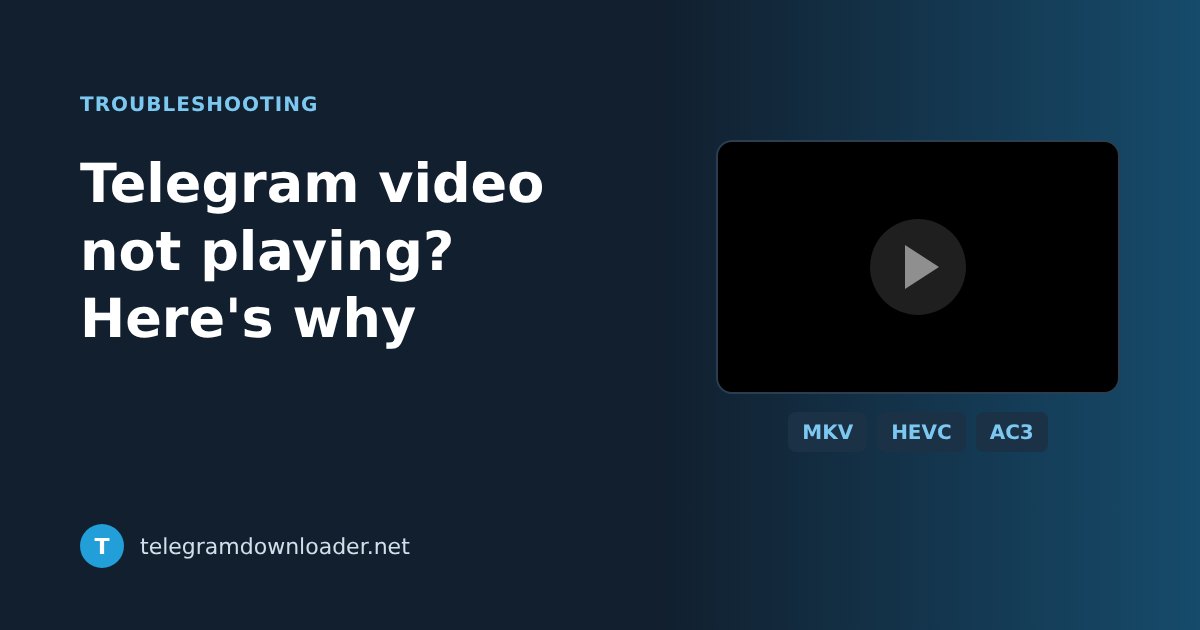
Telegram video not playing? Here’s how to fix it
A Telegram video that won’t play is usually a format, codec or download problem. How to tell which one you have, and the quickest fix for each on phone and PC.
You tap play and get a spinning circle. Or a black screen with sound. Or a message saying the format isn’t supported. A Telegram video that won’t play is annoying, but the reason is almost always one of a few simple things, and most of them take a minute to fix.
In short
- “Format not supported” or sound with a black screen: the file is MKV, AVI or HEVC. Open it in VLC.
- Stops at the same point every time: the download didn’t finish. Delete it and download again with free space.
- Nothing plays at all: update Telegram, restart it and free up some storage.
First, look at how the video was sent
This one detail tells you where to look.
- Sent as a video: you see a preview picture with a play button, and it starts inside Telegram. If one of these fails, the problem is usually the download or the app.
- Sent as a file: you see a document icon and a file name, such as
movie.mkv. Telegram hands these to your phone or computer to open, and your device’s own player may not understand the format.
Cause 1: your player doesn’t support the format
Files ending in .mkv, .avi, .wmv or .flv are the usual suspects. They are common in channels that share films and series, and many built-in players can’t open them. An iPhone, for example, won’t play an MKV file in Photos or Files.
The fix: install VLC. It is free on iPhone, Android, Windows and Mac, and it plays almost every format you will meet on Telegram. Save the file to your device, then open it with VLC instead of the default player. On Android, MX Player works well too.
Cause 2: picture but no sound, or sound but no picture
This is a codec problem. The file itself is fine, but your device can’t decode one of the tracks inside it.
- Sound but no picture usually means the video is in HEVC, also called H.265. Older phones and many Windows PCs can’t decode it out of the box. On Windows, Microsoft sells an add-on called HEVC Video Extensions in the Microsoft Store, or you can skip it and use VLC, which brings its own decoder.
- Picture but no sound usually means the audio is in a format like AC3 or DTS, which is common in movie files. Phone players often can’t decode it. VLC can.
Cause 3: the download didn’t finish
If a video plays for a while and then freezes at the same point every time, the file probably never fully downloaded. A weak connection, closing the app too early or a full phone can all cut a download short.
The fix: delete the partial copy, free up some space and download it again with the app open. If a video you watched last week suddenly needs downloading again, that is Telegram’s cache cleaner at work, not a fault. You can change how long Telegram keeps media under Settings → Data and Storage → Storage Usage.
For large files on a shaky connection, a download manager is more reliable than the app. Copy the post link, paste it into Telegram Downloader, and open the direct link in IDM, FDM or your browser. If the connection drops, the download carries on from where it stopped instead of starting over.
Cause 4: the app needs a nudge
When even short, ordinary videos refuse to play, the problem is the app rather than the files.
- Update Telegram from the App Store, Google Play or desktop.telegram.org.
- Close the app completely and open it again.
- Make sure your phone has at least a gigabyte or two of free space. Telegram needs room to buffer video.
- Try the same video on another device. If it plays there, the issue is your phone, not the video.
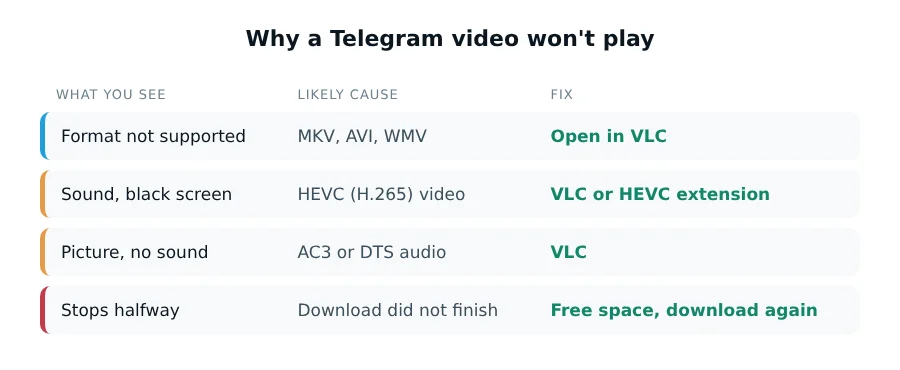
The quick version
| What you see | Likely cause | Fix |
|---|---|---|
| “Format not supported” | MKV, AVI or another container your player doesn’t know | Open the file in VLC |
| Sound but black screen | HEVC (H.265) video | VLC, or HEVC Video Extensions on Windows |
| Picture but no sound | AC3 or DTS audio | VLC |
| Stops at the same point | Incomplete download | Delete and download again with free space |
| Nothing plays at all | App or storage problem | Update, restart, free up space |
Watching without downloading
If you only want to watch a video from a public channel, you don’t have to download it first. When you paste the post link into Telegram Downloader, MP4 and WebM videos get a Watch online button that plays them right in your browser. MKV files usually won’t play in a browser, so for those, download the file and open it in VLC.
Quick answers
Why does my Telegram video have sound but no picture?
The video is most likely encoded in HEVC (H.265), which older phones and many Windows PCs can’t decode. Open it in VLC, or on Windows install HEVC Video Extensions from the Microsoft Store.
How do I play an MKV file from Telegram on iPhone?
Save the file to the Files app, then open it with VLC for iOS, which is free. The built-in iPhone player doesn’t support MKV.
Why does a Telegram video stop at the same point every time?
The download probably didn’t finish. Delete the copy, free up some space and download it again with the app open.
Can I watch a Telegram video without downloading it?
Yes, if it’s an MP4 or WebM video in a public channel. Paste the post link into Telegram Downloader and press Watch online to play it in your browser.
Last checked October 2026. If something here no longer matches the app, tell us at [email protected].